
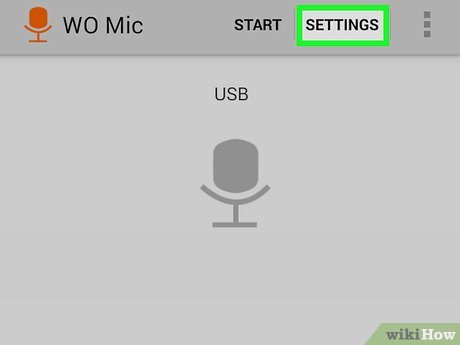
Have you ever needed a microphone urgently but didn’t have one nearby? That’s where WO Mic steps in like a clever shortcut. It’s a simple yet powerful application that allows you to use your smartphone as a microphone for your computer. Instead of buying new hardware, you just install an app and connect your phone. Sounds almost too good to be true, right? But it actually works—and quite well.
WO Mic is designed with simplicity in mind. It includes three essential parts: the mobile app, the PC client, and a driver. Together, they create a bridge that transfers your voice from your phone to your computer in real time. Once connected, your PC treats your phone just like a regular microphone. Whether you’re on a Zoom call, recording audio, or chatting in a game, it does the job efficiently.
The growing popularity of remote work, online classes, and gaming has made tools like WO Mic more relevant than ever. People want quick, budget-friendly solutions, and this software delivers exactly that. It’s lightweight, easy to use, and doesn’t require technical expertise.
How WO Mic Works
At first glance, WO Mic might seem like magic, but its working process is actually quite logical. The app uses your smartphone’s built-in microphone to capture sound. That audio is then transmitted to your PC using a selected connection method. The client software on your computer receives the signal and converts it into input your system can recognize.
The most impressive part is real-time audio transmission. There’s minimal delay, especially when using a USB connection. This makes it suitable not only for casual chatting but also for gaming and online meetings. The software is optimized to handle audio data efficiently, ensuring smooth communication.
Think of WO Mic like a wireless walkie-talkie between your phone and computer. Your phone speaks, your PC listens—it’s that simple. The quality depends on the connection type and environment, but overall, it delivers reliable performance for everyday use.
Key Features of WO Mic
One of the biggest reasons people love WO Mic is its feature set. It’s not just a basic tool—it offers flexibility and control.
First, it supports multiple connection modes. You can connect via USB, Wi-Fi, or Bluetooth, depending on what’s convenient for you. USB provides the best stability, while Wi-Fi offers freedom of movement.
Another standout feature is its low latency performance. Nobody likes delays during conversations, especially in games or meetings. WO Mic minimizes lag, making communication smooth and natural.
It also supports different audio formats and settings. You can adjust sample rates and buffer sizes to improve sound quality. This level of customization allows users to fine-tune the experience according to their needs.
System Requirements
Before using WO Mic, it’s important to ensure your devices meet the requirements. Thankfully, the software is lightweight and doesn’t demand powerful hardware.
PC Compatibility
WO Mic works on most Windows systems, including Windows 7, 8, 10, and 11. You don’t need a high-end PC—basic specifications are enough. The key requirement is installing the correct drivers.
Mobile Compatibility
On the mobile side, Android devices are fully supported. As long as your phone has a working microphone and supports Wi-Fi, Bluetooth, or USB, you’re ready to go.
How to Download WO Mic
Downloading WO Mic is simple and takes only a few minutes. The safest way is through the official website:
👉 Download WO Mic Here
From there, you can download the PC client and drivers. For mobile devices, the app is available on the Google Play Store. Always avoid third-party websites to prevent security risks.
Installation Guide
Setting up WO Mic is easier than you might think.
PC Setup
Download the client and driver from the official website. Install the driver first, followed by the client software. Restart your computer to ensure everything works properly.
Mobile Setup
Install the app on your phone and grant microphone permissions. Choose your preferred connection method and keep the app running.
How to Connect WO Mic
USB Connection
This is the most reliable method. Simply connect your phone using a USB cable and enable USB debugging. It offers the best performance with minimal delay.
Wi-Fi Connection
Connect both devices to the same network and enter the IP address in the client. This method is convenient but depends on network quality.
Bluetooth Connection
Bluetooth is the least stable option. It’s useful for quick setups but may introduce slight lag.
Advantages and Disadvantages
| Advantages | Disadvantages |
| Free and easy to use | Not studio-quality audio |
| Multiple connection options | May have latency |
| No extra hardware needed | Requires setup |
| Portable and flexible | Limited iOS support |
WO Mic vs Traditional Microphones
Comparing WO Mic to traditional microphones is like comparing convenience to perfection. Traditional microphones deliver superior audio quality and are ideal for professional recording. WO Mic, on the other hand, focuses on accessibility and ease of use.
If you need something quick and free, WO Mic is perfect. But if you’re producing high-quality podcasts or music, a dedicated microphone is still the better choice.
Best Use Cases
WO Mic is incredibly versatile. Gamers use it for voice chat, students use it for online classes, and professionals rely on it for meetings. It’s also a great tool for beginners in content creation who don’t want to invest in expensive equipment right away.
Common Issues and Fixes
Sometimes things don’t go as planned. Connection problems are usually caused by incorrect settings or network issues. Restarting both devices often fixes the problem.
Audio lag can occur in Wi-Fi or Bluetooth mode. Switching to USB usually resolves this instantly.
Tips to Improve Audio Quality
If you want better sound, start with your environment. A quiet room makes a big difference. Keep your phone at a comfortable distance and avoid placing it too close to your mouth.
Using a USB connection instead of wireless methods can significantly improve audio stability. Adjusting settings like sample rate can also enhance clarity.
Security and Privacy
WO Mic is generally safe, but you should always download it from trusted sources. Avoid using public Wi-Fi networks when transmitting audio. Keeping your software updated helps protect against vulnerabilities.
Alternatives to WO Mic
While WO Mic is popular, other apps offer similar functionality. Exploring alternatives can help you find better features or compatibility depending on your needs.
Conclusion
WO Mic is a smart and practical solution for anyone who needs a microphone without spending money. It transforms your smartphone into a reliable audio device that works in multiple situations. From gaming to meetings, it offers flexibility and convenience that’s hard to beat.
It may not replace professional microphones, but for everyday use, it’s more than enough. With easy setup and multiple connection options, WO Mic proves that sometimes the simplest tools are the most powerful.
FAQs
1. Is WO Mic free?
Yes, it offers a free version with essential features.
2. Which connection method is best?
USB is the most stable and provides the lowest latency.
3. Can I use WO Mic for gaming?
Yes, it works well for voice chat in games.
4. Why is my audio lagging?
Lag usually occurs in Wi-Fi or Bluetooth mode. Switch to USB for better performance.
5. Is WO Mic safe to use?
Yes, as long as you download it from the official website.
