
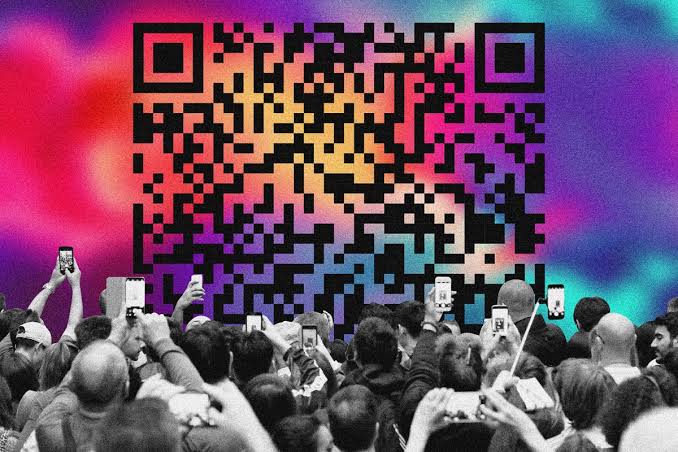
Creating a QR code takes about ten seconds these days — plug in a link, customize the colors, download the file, done. Most of the tools built for that job, including the good ones, are optimized entirely around making that first step effortless. What gets far less attention, in almost every guide and tutorial out there, is the second half of the equation: whether the person on the receiving end can actually scan the thing without friction. A QR code that looks great and generates instantly is worth exactly nothing if a meaningful share of your intended audience can’t read it.
Generation and Scanning Are Not the Same Problem
It’s worth separating these two halves clearly, because they get conflated constantly in casual conversation about “QR codes” as if they’re one unified experience. Generating a code is a design and technical problem: choosing the right error-correction level, picking colors with enough contrast, sizing it appropriately for wherever it’ll be printed or displayed. Scanning a code is an entirely different problem, one that depends almost entirely on factors the code’s creator has no control over — what device the scanner is using, whether their camera supports native QR recognition, the lighting conditions, and whether they’re looking at the code live or trying to decode it from a photo someone sent them.
A campaign, a flyer, a business card, or a product package can have a flawlessly generated QR code and still underperform badly if nobody thought through the scanning side of that equation. This is the gap that quietly costs marketers, small businesses, and individual creators real conversions, and it rarely gets diagnosed correctly, because a failed scan looks identical to disinterest from the outside — the person just doesn’t act, and nobody ever finds out it was a technical failure rather than a lack of interest.
Where Scanning Actually Breaks Down
● Older or budget devices that don’t support native in-camera QR recognition
● A code shared as a photo or screenshot rather than encountered physically, which a phone’s default camera scanner often can’t handle at all
● Poor lighting or glare on a printed or laminated surface, distorting the camera’s read
● A code sized incorrectly for its intended scanning distance — too small for a poster meant to be read from across a room, for instance
● A desktop or laptop context, where there’s typically no camera-based scanner built in at all
Why This Matters Even More for Anything Built to Track
For anyone using dynamic, trackable QR codes — the kind that let you monitor scan volume and adjust a destination after printing — a failed scan doesn’t just cost a single lost conversion. It quietly distorts your own data. If ten percent of your intended scanners can’t get a code to read at all, your scan analytics are undercounting real interest by exactly that margin, and any decision made off those numbers — which placement is working, which design variant to keep — inherits that same blind spot. Getting the scanning side right isn’t just about individual conversions; it’s about trusting the numbers a QR campaign is actually reporting back to you.
A Practical Testing Habit Worth Building In
The fix here is almost embarrassingly simple, and it’s the step that gets skipped constantly: test every code yourself, on more than one device, before it goes anywhere near a print run or a public campaign. This sounds obvious, but it’s routinely the step that gets rushed or skipped entirely when a deadline is looming and the code “looks right” on screen.
A free browser-based free QR code scanner is a useful complement to any QR generation workflow specifically for this reason. Rather than relying solely on your own phone’s camera — which may handle scanning more gracefully than an older device your audience is actually using — a browser-based tool lets you check a code from any device with a camera or the ability to upload an image, including a desktop, without installing anything extra just to run a quick test.
The Upload-an-Image Case Deserves Special Attention
One scanning scenario that generation-focused tools almost never account for, but that comes up constantly in real usage, is decoding a QR code from an image rather than a live camera feed. Someone forwards a code as a screenshot. A code sits embedded in a PDF a colleague is reviewing on a laptop with no camera pointed at anything. A printed proof needs checking before a full production run, and the easiest way to verify it is a photo, not a live scan of a physical object that doesn’t exist yet.
A scanning tool that handles both live camera input and uploaded images covers a meaningfully wider range of real situations than a live-camera-only approach, and it’s worth specifically confirming any tool you rely on for testing supports both before assuming a code “works” based on a single successful live scan.
A Quick Note on the Trust Side of Scanning
As QR-based scams have grown more common — fraudulent codes substituted over legitimate ones, phishing links disguised as promotions — the scanning experience has also become a meaningful trust signal in its own right. A scanner that previews a code’s decoded content before automatically opening or acting on it gives users a moment to sanity-check a link before committing to it, which matters increasingly as recipients grow more cautious about QR codes generally. For anyone building a QR-dependent campaign, pointing your own audience toward a scanner that behaves this way — rather than one that blindly redirects — is a small detail that can meaningfully support trust in your codes specifically, at a moment when general QR skepticism has been rising.
Building Scanning Into Your Workflow, Not Just Your Checklist
For anyone regularly generating QR codes — marketers running recurring campaigns, small business owners updating seasonal materials, event organizers producing badges or signage — the practical takeaway is to treat scan-testing as a standing step in the workflow, not a one-time check the first time you try a new tool. Print materials shift over time: a new printer, a different paper stock, a redesigned layout, and a code that scanned perfectly on the first run can behave differently on the next. Building in a quick re-test at each new production run costs a couple of minutes and catches problems well before they reach an actual audience.
Generation gets a code out into the world. Scanning is what actually determines whether that code does anything once it’s there. Both halves deserve equal attention in any serious QR workflow — and the second half, quietly, is the one most tools and most guides still leave almost entirely up to chance.
A Simple Framework for Getting Both Halves Right
For anyone building QR codes into a regular part of their marketing or operations, a useful mental model is to treat every code as having two separate audiences to satisfy: the code itself, which needs to be well-formed, appropriately sized, and linked to something worth landing on, and the scanner, whose device, lighting conditions, and technical familiarity you don’t control and can’t fully predict. Designing for the first audience is the part every generation tool already handles well. Designing for the second means testing across multiple devices, offering an image-upload fallback alongside live scanning, and previewing decoded content rather than assuming every scan will go smoothly.
Neither half is particularly difficult on its own. What trips people up is treating QR strategy as a single-step task — generate, print, done — rather than a two-part process where the second part determines whether the first part was worth doing at all. A five-minute testing habit, repeated at each new print run or campaign launch, closes most of that gap for good.
A Short Checklist Before Your Next Print Run
● Test the code on at least two different phones, including an older or budget device if you have access to one
● Confirm the code still scans after it’s been resized or placed into its final layout, not just in its original generated form
● Check the code under the lighting conditions it’ll actually be viewed in, not just on a bright screen at your desk
● Try uploading a photo of the printed proof to a browser-based scanner, not just a live scan, to confirm image-based decoding also works
● Preview the decoded link yourself one more time, confirming it goes exactly where you intended before the final print order goes out
None of these steps take more than a minute or two individually, and together they catch the overwhelming majority of scanning failures before they ever reach a real audience — which, given how much time and budget usually goes into the design and placement side of a QR campaign, is a small investment for protecting the return on all of it.
Worth building this checklist into whatever tool or workflow you already use for generating codes, rather than treating it as a separate, occasional task. The habit costs almost nothing once it’s routine, and it’s the difference between a campaign that quietly underperforms and one that actually converts at the rate the design deserves.
How to Scan a QR Code From an Image (When the Code Isn’t in Front of You)
Most QR code advice assumes the same basic setup: you’re standing in front of a poster, a menu, or a product, and you just need to point your camera at it. But a huge number of real situations don’t work that way at all. Someone sends you a QR code as a photo in a text message. You take a screenshot of a code buried in a PDF. A code shows up in an old email attachment you’re trying to dig through months later. In every one of these cases, there’s no physical code to point a camera at — just an image sitting on your device, and a completely reasonable need to figure out what it actually contains.
This guide walks through exactly how to handle that situation, plus a few related things worth knowing about QR codes in general.
Why Your Camera App Can’t Help Here
It’s worth understanding why this trips people up in the first place. Most modern phones can scan a QR code automatically through the native camera app — but that feature is built specifically around live scanning, meaning it’s looking for a QR pattern through the camera lens in real time. It’s not designed to reach into your photo gallery and decode a code sitting inside a saved image. Point your camera at your own phone screen showing the photo, and you’re relying on the camera picking up a code through two layers of glass and screen glare, which works sometimes and fails constantly.
This is a common enough frustration that it’s worth having a proper fix in your back pocket, rather than fumbling with the point-your-camera-at-your-own-screen workaround every time it comes up.
The Actual Fix: Uploading the Image Directly
The cleanest solution is a tool built specifically to scan QR code from image files directly — no camera involved at all. Instead of pointing anything at anything, you simply upload the image file itself, and the tool reads the QR code straight from the picture data. It’s faster, more reliable, and skips the awkward screen-to-screen scanning workaround entirely.
Step-by-Step: Scanning a QR Code From a Saved Image
● Save the image containing the QR code to your device, if it isn’t already (screenshot it, download it, or save it from a message)
● Open a browser-based QR scanning tool that supports image uploads
● Select the “upload image” option rather than the live camera option
● Choose the saved image from your photo gallery, downloads folder, or wherever it’s stored
● Wait a second or two while the tool reads the code directly from the image
● Review the decoded result — a link, text, Wi-Fi details, or contact info — before opening or acting on it
Common Situations Where This Comes Up
● A friend or colleague forwards a QR code as a photo over text, WhatsApp, or email
● A QR code appears inside a PDF, slide deck, or document you’re viewing on a laptop
● You’ve screenshotted a code from a social media post or a webpage
● You’re digging through old photos and find a QR code you saved but never actually scanned
● A code printed in a magazine, brochure, or physical mailer has been photographed rather than scanned directly
Does It Matter What Kind of Image File It Is?
Generally no — most browser-based scanning tools handle the common image formats without any extra steps: JPG, PNG, and most screenshots work without issue. The main thing that affects whether a code decodes successfully isn’t the file format, but the image quality itself. A blurry, low-resolution, or heavily compressed image can make the code’s pattern hard to read accurately, the same way a smudged or damaged printed code can fail to scan in person. If a first attempt doesn’t work, checking whether a higher-resolution version of the image is available is usually the quickest fix.
What Kind of Information Might Be Hiding in the Code
It’s easy to assume every QR code just leads to a website, but the format can actually hold several different kinds of information, and it’s worth knowing what to expect once a code is decoded:
● A website link — the most common type, opening a page in your browser
● Plain text — a short message or note with no link involved at all
● Wi-Fi credentials — network name and password, letting a device connect automatically
● A contact card (vCard) — someone’s name, phone number, and email, ready to save directly to your contacts
● A calendar event — details for adding an appointment or event directly to your calendar app
A Quick Safety Note Before You Act on Anything
This is worth pausing on, because it applies whether you’re scanning a code live or decoding one from a saved image: QR codes don’t show you where they lead until after they’re decoded, and that opacity has made them a target for scams. Fake codes have been used to redirect people to phishing pages disguised as payment portals, delivery notifications, or account verification requests. A decent scanning tool solves this by showing you the decoded content — the actual link or text — before automatically opening anything, giving you a moment to check that it looks legitimate before you tap through.
This matters just as much for codes decoded from an image as it does for live scans. A photo forwarded by a friend could just as easily contain a malicious code as one you scan in the wild, so the same quick check-before-you-tap habit applies either way.
Why This Is Genuinely Useful Beyond Just Convenience
Beyond the obvious time savings, being able to decode a QR code from an image opens up a few less obvious but genuinely useful possibilities. You can verify a code’s contents before printing it in bulk, by uploading a proof image rather than needing a live physical copy to scan. You can archive and later decode codes from old screenshots or saved documents without needing the original physical source anymore. And you can check a code shared in a group chat or email thread without needing to track down whoever originally posted it and ask them to hold it up to a camera.
The Bottom Line
If you’ve ever been stuck staring at a QR code sitting inside a photo, unable to get your camera app to cooperate, the fix is a lot simpler than it seems — you don’t need the code physically in front of you at all. A browser-based tool that reads codes directly from an uploaded image handles the situation in seconds, without any of the screen-to-screen scanning fumbling most people default to. It’s a small trick, but it’s exactly the kind of thing that turns a genuinely annoying five-minute problem into something that takes about ten seconds once you know where to look.
A Few Troubleshooting Tips If It’s Still Not Working
● Try a slightly different crop of the image — a wide screenshot with lots of surrounding content can sometimes confuse a scanner more than a tightly cropped shot of just the code
● Check the image isn’t rotated or upside down — some scanners handle this fine, but a few work better with the code oriented normally
● If the original file is available, use it instead of a screenshot of a screenshot, since each re-capture loses a bit of image quality
● Zoom in on the code before saving or cropping, so the pattern takes up more of the image rather than being a tiny detail in a larger photo
Worth Bookmarking for Next Time
This isn’t a situation that comes up constantly, but it comes up often enough — a forwarded screenshot, an old document, a code buried in a slide deck — that it’s worth having a go-to method ready rather than relearning the workaround every time. Bookmark a browser-based scanner that supports image uploads, and the next time a QR code shows up somewhere you can’t physically point a camera at, you’ll already know exactly what to do.
One Last Practical Example
Say a family member emails you a flyer for a community event, and the RSVP link is only available as a QR code printed on the flyer they scanned and attached as a PDF. Pointing your phone’s camera at your own laptop screen might eventually work, after a few frustrating attempts at getting the angle and zoom just right, but it’s a clumsy way to solve a problem that has a much cleaner fix. Save the flyer image, upload it to a browser-based scanner, and you’ll have the RSVP link in front of you in under ten seconds — no camera gymnastics required.
Small fix, genuinely useful once you know it’s there, and one more reason the whole idea of needing a physical code in front of you to scan it is quickly becoming outdated.
